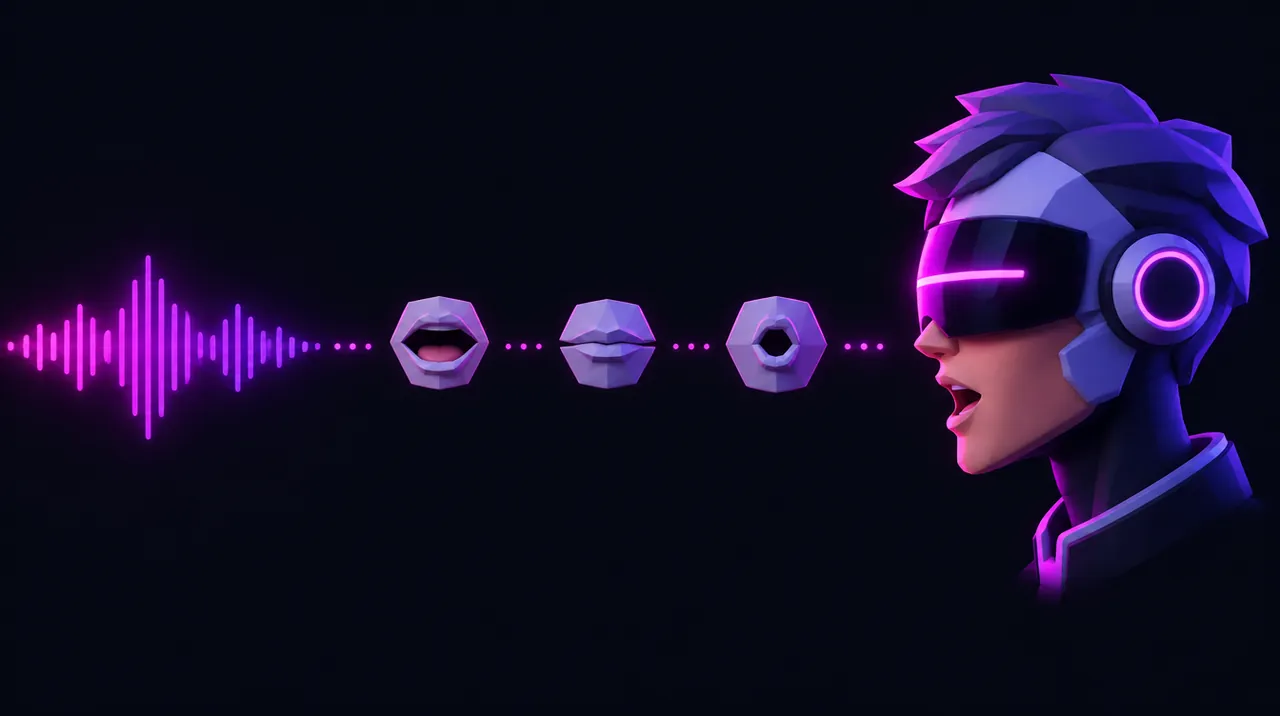
AI voice lines to lip-sync: TTS, then mouth animation
A voice line you're licensed to ship, plus matching lip-sync: mouth-shape cues for 2D sprites, baked blendshape clips in Unity, or MetaHuman facial animation in Unreal.


 Voice line (TTS)
- 2Export WAV
- 3Lip-sync tool
- 4Play in engine
Cost and licences of the AI tools in this guide
- ElevenLabsCommercial on paid plans only10,000 credits; non-commercial only pricing
- Inworld AICommercial use allowedFree pay-as-you-go account pricing
- ConvaiCommercial use allowed100 interactions quota pricing
- Charisma.aiCommercial use allowedNo free plan; pay as you go pricing
Everyone: steps 1–2
Pick a TTS plan that allows commercial use
- Use a paid ElevenLabs plan: paid plans include a commercial licence.
- Don't ship lines made on the Free plan; Free-plan audio isn't licensed for commercial use.
- Avoid Beta features for lines you'll ship, as ElevenLabs excludes Beta output from commercial and production use.
You should see: Your plan's feature list includes a commercial licence (Starter and above).
Watch out: Free-plan audio stays non-commercial even if you credit ElevenLabs, so regenerate those lines on a paid plan before release.
From the official docs: ElevenLabs: can I publish what I generate? ↗
Generate and export the voice line
- Generate the line and choose a WAV output format (for example wav_24000) instead of the default MP3.
- Use WAV because Rhubarb reads WAV or Ogg Vorbis, and Unity and Unreal import WAV directly.
- Save one file per line with a stable name, and keep the script text next to it.
You should see: One clean .wav file per line that plays back without clicks or silence at the ends.
Watch out: The 44.1 kHz WAV/PCM formats need a higher-tier plan; a lower rate like wav_24000 is fine for lip-sync.
Official video from ElevenLabs. Watch on YouTube ↗ From the official docs: ElevenLabs API: create speech ↗
Then pick your path
2D characters
Run Rhubarb on the line
- Download Rhubarb Lip Sync from its GitHub releases page.
- Run: rhubarb -o line01.tsv line01.wav (the audio file goes last).
- Add -d line01.txt with the line's script so recognition follows your words.
You should see: A TSV file with one timestamp and one mouth-shape letter per row.
Watch out: Without -d, recognition is less reliable, so always pass the script text.
Official video from Rhubarb Lip Sync. Watch on YouTube ↗ From the official docs: Rhubarb Lip Sync README ↗
Choose the recognizer and output format
- Keep the default recognizer (-r pocketSphinx) for English lines.
- Use -r phonetic for other languages.
- Set -f to tsv, xml, json or dat to match what your engine or animation tool reads.
You should see: The output file is in a format your engine or tool can import.
Watch out: The phonetic recognizer works for any language but is less precise on English, so only switch when you need to.
From the official docs: Rhubarb Lip Sync README ↗
Map mouth shapes to sprites
- Draw the six basic mouths A to F (A is closed for P, B and M; D is wide open; F is puckered).
- Optionally add G (F/V sounds), H (long L) and X (rest), or limit them with --extendedShapes.
- In game, read each row and show that letter's sprite until the next timestamp.
You should see: The mouth changes in time with the audio and rests on X during pauses.
From the official docs: Rhubarb README: mouth shapes ↗
Unity 3D
Install uLipSync
- In Package Manager, choose Add package from git URL and enter https://github.com/hecomi/uLipSync.git#upm.
- Or add the npm scoped registry (scope com.hecomi), or import the .unitypackage together with Burst and Mathematics.
You should see: uLipSync shows up in Package Manager and under Window > uLipSync.
Watch out: If you use the .unitypackage with VRM models, add USE_VRM0X or USE_VRM10 as a scripting define symbol yourself.
From the official docs: uLipSync README ↗
Add the components
- Put an AudioSource and a uLipSync component on the character.
- Add uLipSyncBlendShape for the face's SkinnedMeshRenderer and map phonemes (A, I, U, E, O, N) to blendshapes.
- Connect uLipSync's On Lip Sync Updated event to uLipSyncBlendShape.OnLipSyncUpdate.
You should see: The face blendshapes move while the clip plays in Play mode.
From the official docs: uLipSync README ↗
Create and calibrate a Profile
- Create a Profile and register the A, I, U, E, O vowels plus a breath phoneme.
- Calibrate with a microphone (hold Calib while saying each vowel), or loop vowel clips with the calibration audio player.
- Assign the Profile to the uLipSync component.
You should see: Each vowel lights up its own phoneme in the inspector.
Watch out: Profiles made in uLipSync v2 don't work in v3, so recalibrate after upgrading.
From the official docs: uLipSync README ↗
Bake to an AnimationClip
- Open Window > uLipSync > Baked Data Generator and convert your voice clips to baked data.
- Open Window > uLipSync > Animation Clip Generator to turn the baked data into keyframed clips.
- Adjust Sample Frame Rate and Threshold to control how many keys are written.
You should see: AnimationClips with blendshape curves that play without real-time analysis.
Watch out: Real-time analysis is slow on WebGL builds, so bake clips there.
From the official docs: uLipSync README ↗
Unreal MetaHuman
Prepare the project and audio
- Use Unreal Engine 5.6 or later and enable the MetaHuman Animator plugin.
- Import the WAV so it becomes a SoundWave asset.
You should see: A SoundWave asset in the Content Browser.
From the official docs: Epic: audio-driven animation ↗
Process the audio in a MetaHuman Performance
- Create a MetaHuman Performance asset and open it.
- Set Input Type to Audio, choose the SoundWave, and set the Visualization Mesh to your MetaHuman face.
- Optionally set head movement, blinks, the process mask (full face or mouth only) and mood, then click Process.
You should see: Facial animation tracks appear in Sequencer.
Watch out: Turning on Realtime Audio removes head motion and hides the other solve options.
From the official docs: Epic: audio-driven animation ↗
Export, or drive it live
- Use Export Animation for an Animation Sequence, or Export Level Sequence with your MetaHuman Blueprint assigned.
- For live speech, add a MetaHuman (Audio) Live Link source and set it as your character Blueprint's Live Link subject.
You should see: An Animation Sequence that plays on the face, or lips that follow a microphone live.
Watch out: Processing in a Performance asset is offline even with the realtime solver; use the Live Link source for true real-time.
From the official docs: Epic: using a MetaHuman audio source ↗
Written from the official documentation linked on each step and checked . Menus and settings change between versions, so follow the linked docs if something looks different. No vendor reviews or pays for these guides.