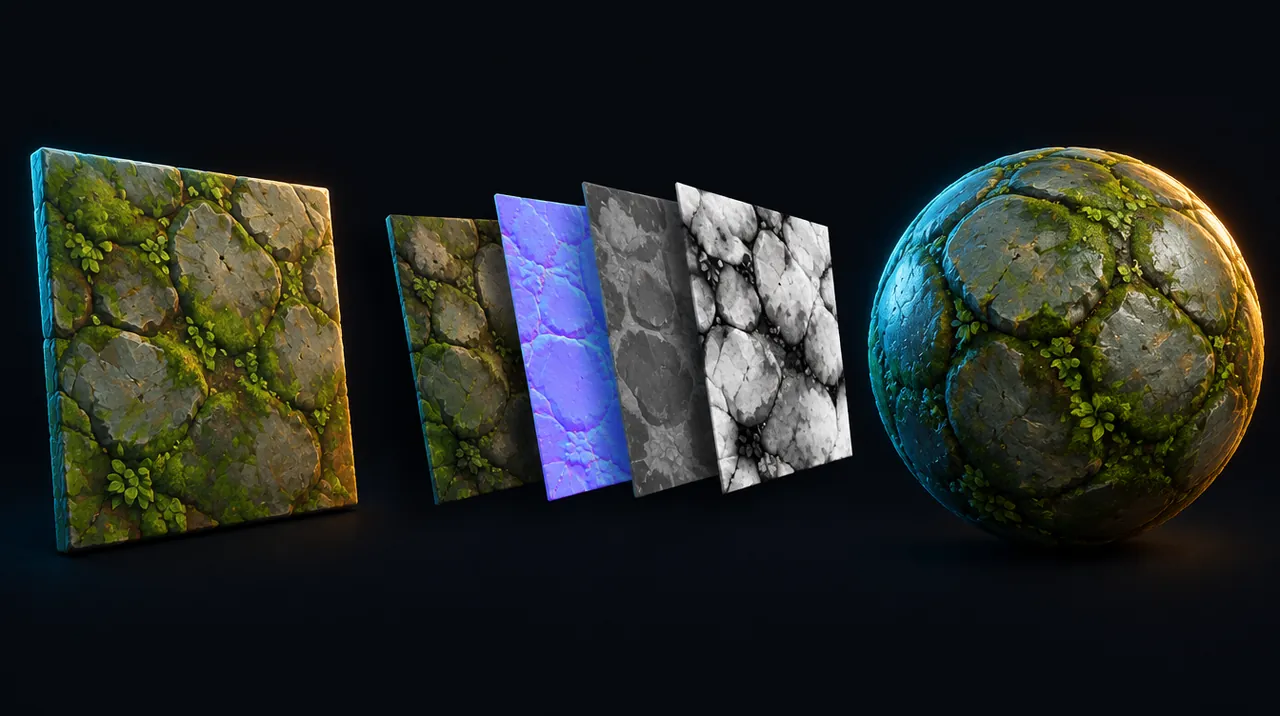
Concept art to a PBR texture set
A tileable AI-generated colour texture plus height, normal, roughness and AO maps, checked in Blender and set up as a material in Unreal, Unity or Godot.


 Tileable image
- 2Check tiling
- 3Make the maps
- 4Check in Blender
- 5Engine material
Cost and licences of the AI tools in this guide
- ScenarioCommercial on paid plans only50 daily credits; personal/evaluation use only pricing
- LayerCommercial use allowedStart for free (scope unverified) pricing
- Leonardo.AiCommercial use allowed150 fast tokens/day; creations are public pricing
- MeshyCommercial use allowed100 monthly credits; outputs CC BY 4.0 pricing
- Unity AIUnity Personal: 14-day free trial, then a paid subscription ($10/month per Unity's AI FAQ; currency not stated by vendor). Pro, Enterprise and Industry include monthly credits. pricing
Everyone: steps 1–4
Generate a flat, tileable source texture
- In Scenario, open Scenario Texture (the Textures flow).
- Describe only the material, like "wet sand, ripple marks", with no scene or perspective.
- Set the size (default 1024 x 1024, in multiples of 16) and turn on Erase Seam.
- If seams remain, raise Overlap for big features or lower it for fine detail, then generate again.
You should see: A flat, top-down material image that repeats without a visible edge.
Watch out: Scenario's pricing page says free-plan output is for personal and evaluation use only; paid plans include a commercial licence.
Official video from Scenario. Watch on YouTube ↗ From the official docs: Scenario Texture: the essentials ↗
Check that it tiles
- In Scenario's 3D viewer, set Geometry to Plane and raise the Tiling slider.
- Or in Blender, open the image in the Image Editor and turn on Repeat Image in the sidebar's Display panel.
- On a Blender Image Texture node, keep Extension set to Repeat.
You should see: No seams, and no obvious repeating blotches across several tiles.
From the official docs: Blender Manual: Image Editor sidebar ↗
Turn the image into material maps
- In Scenario's 3D viewer, click Generate Maps to get height, normal, metallic, edge and AO maps.
- Adjust the Raised, Shiny, Polished and Angular sliders, and invert the height map if the relief looks backwards.
- For a roughness map, run Scenario's Texture Converter on the colour texture; it outputs normal, roughness, height and metallic maps.
You should see: A matching set of greyscale maps plus a purple-blue normal map.
Watch out: Generate Maps doesn't produce a roughness map; use the Texture Converter for that.
From the official docs: Scenario: texture generation basics ↗
Hook up and check the maps in Blender
- Add an Image Texture node for each map and connect the colour texture to Base Color on the Principled BSDF.
- Set the normal, roughness, AO and height images to Color Space: Non-Color.
- Send the normal map through a Normal Map node (Tangent space) into the BSDF's Normal input.
- If the bumps look inverted, switch the Normal Map node's convention (Blender uses OpenGL by default).
You should see: Light catches the relief correctly as you orbit the view.
Watch out: Normal maps must not get colour conversion, so always set them to Non-Color.
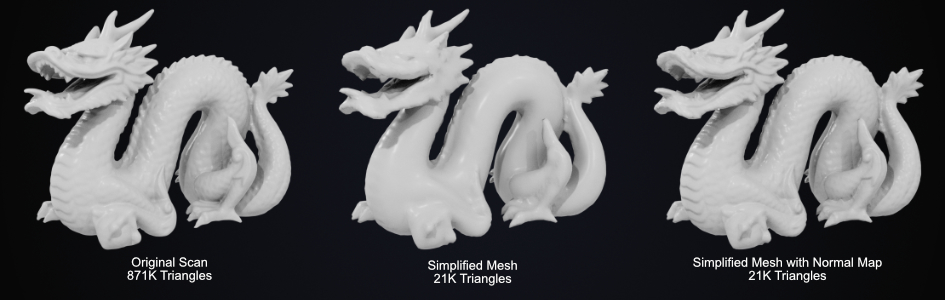
A normal map applied through the Normal Map node. Image: Blender Manual, Blender Documentation Team, CC BY-SA 4.0. From the official docs: Blender Manual: Normal Map node ↗
Then pick your path
Unreal Engine
Set the texture properties
- Open the normal texture and set Compression Settings to Normalmap; tick Flip Green Channel if the bumps look inverted.
- Open the roughness and AO textures and untick sRGB, because data maps shouldn't be gamma-corrected.
You should see: Normal shading looks right and the roughness keeps its values.
Watch out: After turning sRGB off, set that texture's sampler to Linear Color in the material, or it won't compile.
From the official docs: Unreal: using texture masks ↗
Build the material
- Right-click in the Content Browser, choose Material, and double-click it to open.
- Add one Texture Sample node per map.
- Connect colour to Base Color, roughness to Roughness, normal to Normal and AO to Ambient Occlusion.
You should see: The preview sphere shows the finished material.
Watch out: The Ambient Occlusion input only has an effect with Static or Stationary lights.
From the official docs: Unreal: material inputs ↗
Unity
Set the import settings
- Select the normal map and set Texture Type to Normal map; use Flip Green Channel for DirectX-style maps.
- On data textures (metallic/smoothness, AO, mask maps), turn off sRGB (Color Texture).
You should see: The normal map imports as a Normal map texture and shades correctly.
From the official docs: Unity: normal map texture type ↗
Make a URP Lit material
- Create a material with the Lit shader and set Workflow Mode to Metallic.
- Assign the Base Map, Normal Map, Height Map and Occlusion Map.
- Unity uses smoothness, not roughness: invert the roughness map, put it in the Metallic Map's alpha, and set Smoothness Source to Metallic Alpha.
You should see: Reflections are sharp where the roughness map was dark.
Watch out: HDRP uses a packed Mask Map instead: red = metallic, green = AO, blue = detail mask, alpha = smoothness.
From the official docs: Unity: URP Lit shader ↗
Godot
Import the normal map
- Select the normal map, and in the Import dock set Compress > Normal Map to Enable.
- For DirectX-style maps, also enable Process > Normal Map Invert Y, then click Reimport.
You should see: The texture reimports as a normal map.
From the official docs: Godot: importing images ↗
Set up a StandardMaterial3D
- Add a StandardMaterial3D to the mesh and set Albedo > Texture.
- Set Roughness > Texture (it reads the red channel by default).
- Enable Normal Map and Ambient Occlusion and assign those textures; height is optional.
- Raise UV1 > Scale to repeat the tile across the surface.
You should see: The surface tiles and reacts properly to light.
Watch out: Height is a parallax effect and is fairly expensive on the GPU, so use it only where it shows.
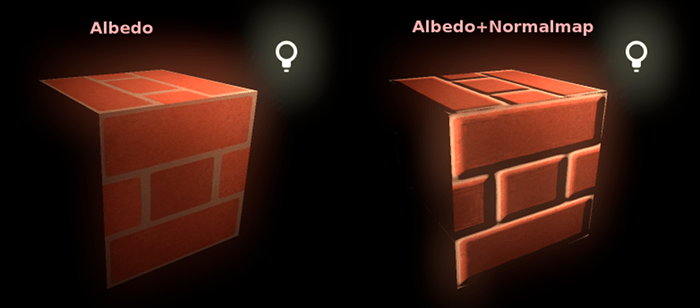
StandardMaterial3D in Godot. Image: Juan Linietsky, Ariel Manzur and the Godot community, CC BY 3.0. From the official docs: Godot: Standard Material 3D ↗
Written from the official documentation linked on each step and checked . Menus and settings change between versions, so follow the linked docs if something looks different. No vendor reviews or pays for these guides.