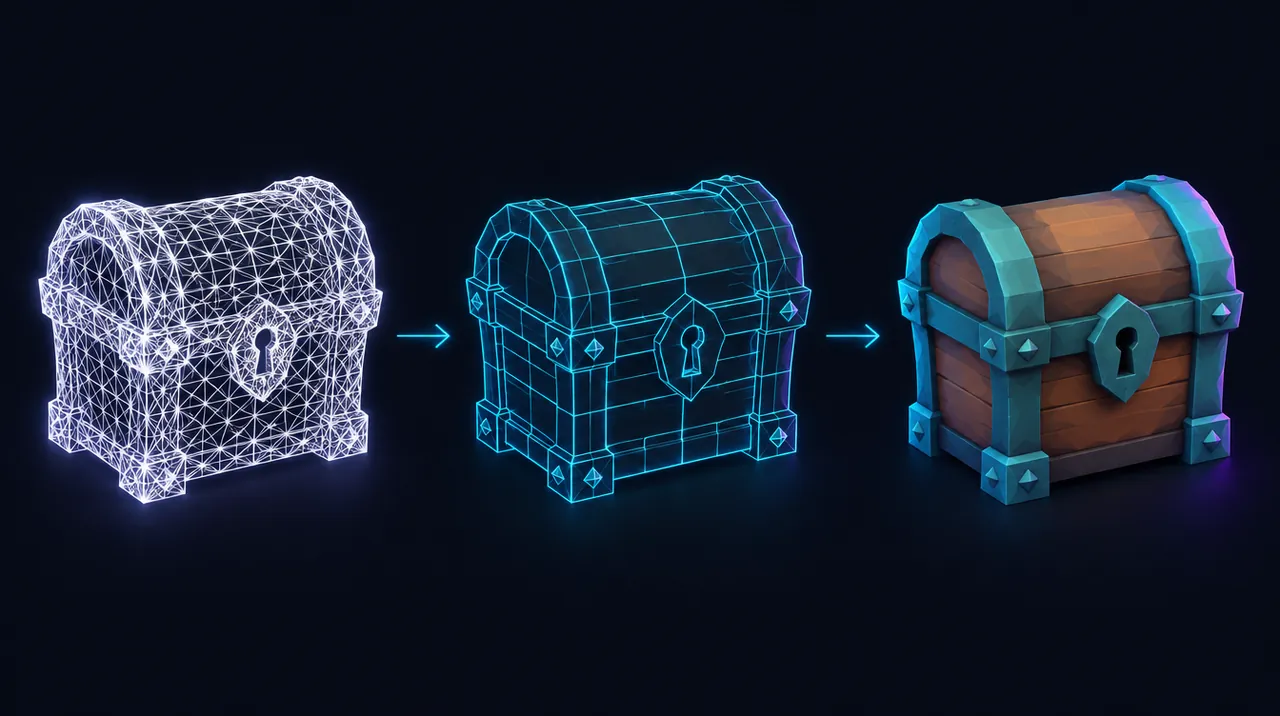
AI 3D model to game engine: generate, clean up in Blender, import
A clean, game-ready mesh (right scale, fixed normals, sensible polycount, baked normal map) in Unreal, Unity or Godot with its textures intact.


 Generate
- 2Export GLB/FBX
- 3Clean up in Blender
- 4Reduce + bake
- 5Into your engine
Cost and licences of the AI tools in this guide
- MeshyCommercial use allowed100 monthly credits; outputs CC BY 4.0 pricing
- Tripo AICommercial on paid plans only200 monthly credits; public, non-commercial pricing
- Hyper3D RodinFree tier; credits sold individually pricing
- SloydCommercial on paid plans onlyFree Guest plan; personal use only pricing
- Hunyuan3D 2.1 (Tencent)Restricted (see notes)Free open weights (your own GPU costs) pricing
Everyone: steps 1–6
Check your plan's licence
- Before generating, look up what your generator plan lets you do with the output.
- Meshy Free: CC BY 4.0, so you can sell games using it if you credit Meshy. Paid Meshy plans give you private, customer-owned assets.
- Tripo Free: Tripo keeps the rights and doesn't grant commercial use. A paid plan gives you commercial rights.
You should see: You know whether you can ship the model and what credit line, if any, it needs.
Watch out: Summaries of Tripo's free tier online contradict each other, so go by Tripo's own help centre and terms.
From the official docs: Tripo: can I use models commercially? ↗
Generate and export GLB or FBX
- In Meshy, click Download and pick GLB (one file with textures inside) or FBX (better for rigs and animation).
- Turn on Quad Mesh in Meshy if you'll retopologise or rig, and set a target polycount with Remesh if you want.
- In Tripo, export GLB or FBX the same way.
You should see: A single .glb file, or an .fbx with its texture files.
Watch out: GLB stores triangles, so quads are lost. Export FBX or OBJ if you need to keep quads.
From the official docs: Meshy: make models game-ready ↗
Import into Blender and clean up
- Use File > Import > glTF 2.0 (.glb/.gltf), or File > Import > FBX.
- In Object Mode, apply rotation and scale with Object > Apply > Rotation & Scale (Ctrl-A).
- In Edit Mode, select everything and run Mesh > Merge > By Distance to weld duplicate vertices.
- Run Mesh > Normals > Recalculate Outside (Shift-N).
You should see: Scale reads 1, 1, 1, and the Face Orientation overlay shows no red (back-facing) patches.
Watch out: Applying a negative scale flips faces; tick Corrective Flip Normals in the Apply options to fix it.
Official video from MeshyAI. Watch on YouTube ↗ From the official docs: Blender Manual: Apply ↗
Reduce the polycount
- Add a Decimate modifier in Collapse mode and lower Ratio until you reach the face count you want.
- For cleaner, even topology, use Properties > Data > Remesh in Voxel or Quad (QuadriFlow) mode instead.
- Keep a copy of the original high-poly mesh: you'll bake its detail in the next step.
You should see: The modifier shows the new face count and the silhouette still looks right.
Watch out: Remesh ignores modifiers and won't run on an object with a Multiresolution modifier.
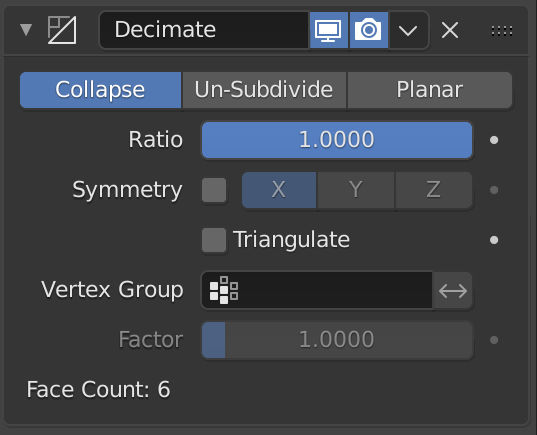
The Decimate modifier in Collapse mode. Image: Blender Manual, Blender Documentation Team, CC BY-SA 4.0. From the official docs: Blender Manual: Decimate modifier ↗
UV unwrap and bake the detail
- Remeshing removes the original UVs, so in Edit Mode run UV > Unwrap > Smart UV Project on the low-poly mesh.
- In the low-poly material, add an Image Texture node with a new image and leave it selected.
- Switch to Cycles, and under Render > Bake set Bake Type to Normal and turn on Selected to Active.
- Select the high-poly mesh, then Shift-select the low-poly one so it's active, and click Bake.
You should see: A normal map on the low-poly mesh that brings back the high-poly detail.
Watch out: If parts of the bake come out blank, raise Extrusion or Max Ray Distance, or use a cage.
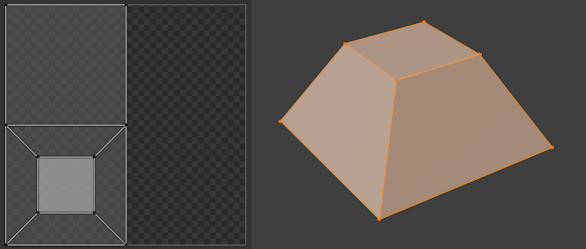
Smart UV Project options. Image: Blender Manual, Blender Documentation Team, CC BY-SA 4.0. From the official docs: Blender Manual: render baking ↗
Export from Blender
- For glTF: File > Export > glTF 2.0, Format glTF Binary (.glb), with Selected Objects, Apply Modifiers and +Y Up on.
- For FBX: File > Export > FBX (.fbx) with Selected Objects and Apply Modifiers on.
- For engines that expect Y-up FBX, set Forward to -Z and Up to Y.
You should see: One file that re-imports at the right size and facing the right way.
Watch out: The FBX exporter's Apply Transform option is experimental and can break rigs and animation.
From the official docs: Blender Manual: glTF 2.0 ↗
Then pick your path
Unreal Engine
Import into Unreal
- Drag the .glb or .fbx into the Content Browser, or click Import there.
- In the import options, enable Build Nanite under Static Meshes if you want Nanite.
- Click Import.
You should see: A static mesh asset with its materials and textures in the Content Browser.
Watch out: If it arrives the wrong size or rotated, adjust the uniform scale or rotation offset in the import options.
Official video from MeshyAI. Watch on YouTube ↗ From the official docs: Unreal: Interchange import reference ↗
Unity
Import into Unity
- FBX is Unity's main model format: drag it into your Assets folder.
- For GLB, first install glTFast: in Package Manager, add a package by name and enter com.unity.cloud.gltfast.
- Select the model and set Scale Factor or Convert Units on the Inspector's Model tab.
- On the Materials tab, choose a material creation mode and extract textures if you need to edit them.
You should see: A model prefab at 1 unit = 1 metre with its materials applied.
Watch out: For .gltf (not .glb), copy the .bin and image files too and don't rename them, or the references break.
Official video from MeshyAI. Watch on YouTube ↗ From the official docs: Unity: glTFast installation ↗
Godot
Import into Godot
- Copy the .glb into your project folder; glTF 2.0 is Godot's recommended 3D format and imports natively.
- Select it in the FileSystem dock, then set Root Scale, Generate LODs and Ensure Tangents in the Import dock and click Reimport.
- Double-click the file for the Advanced Import Settings window.
You should see: An imported scene you can drag straight into the 3D view.
Watch out: Import settings don't change the source file, so fix geometry problems in Blender instead.
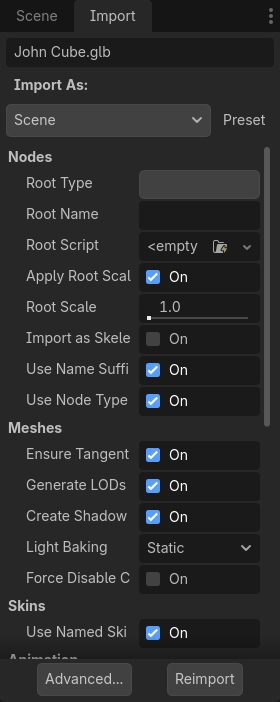
Godot's Import dock. Image: Juan Linietsky, Ariel Manzur and the Godot community, CC BY 3.0. From the official docs: Godot: import configuration ↗
Written from the official documentation linked on each step and checked . Menus and settings change between versions, so follow the linked docs if something looks different. No vendor reviews or pays for these guides.